End the Neverending Chat: A Strategy to Objectify Chat Outcomes
If you’re like me, you have about fifteen AI chats open right now, and none of them feel entirely done. Each one started for a good reason. Each one got all the way, most of the way, or partway. Now they sit in a list like cans opened and never finished: plenty started, nothing really feeling closed for good.
That feeling is the problem I set out to fix. Here is what I built, and how you can try it with the assistant you already use.
Why it costs more than time
There is a money side too. Each time you send a message, the assistant rereads the whole conversation so far before it answers. The longer a chat runs, the more it has to process on every reply, which uses more of your plan’s allowance, or more of your usage bill if you pay by volume. A chat that never ends keeps the meter running.
Why chats never feel finished
An AI chat is a stream of text, and a stream has no natural end. On multi-step work, three things pile up:
- The text gets long. Progress is buried in paragraphs and hard to scan.
- Ownership is unclear. You can’t tell what is done and what is waiting on you.
- Nothing says you’re finished. You stop when you’re tired, not when the work is complete.
The assistant doesn’t help here. These tools are built to be helpful, so they keep offering the next step, another idea, one more improvement. They almost never say “we’re done.” Someone has to say it, and if it isn’t you, nothing will.
The fix: an objective and a running tally
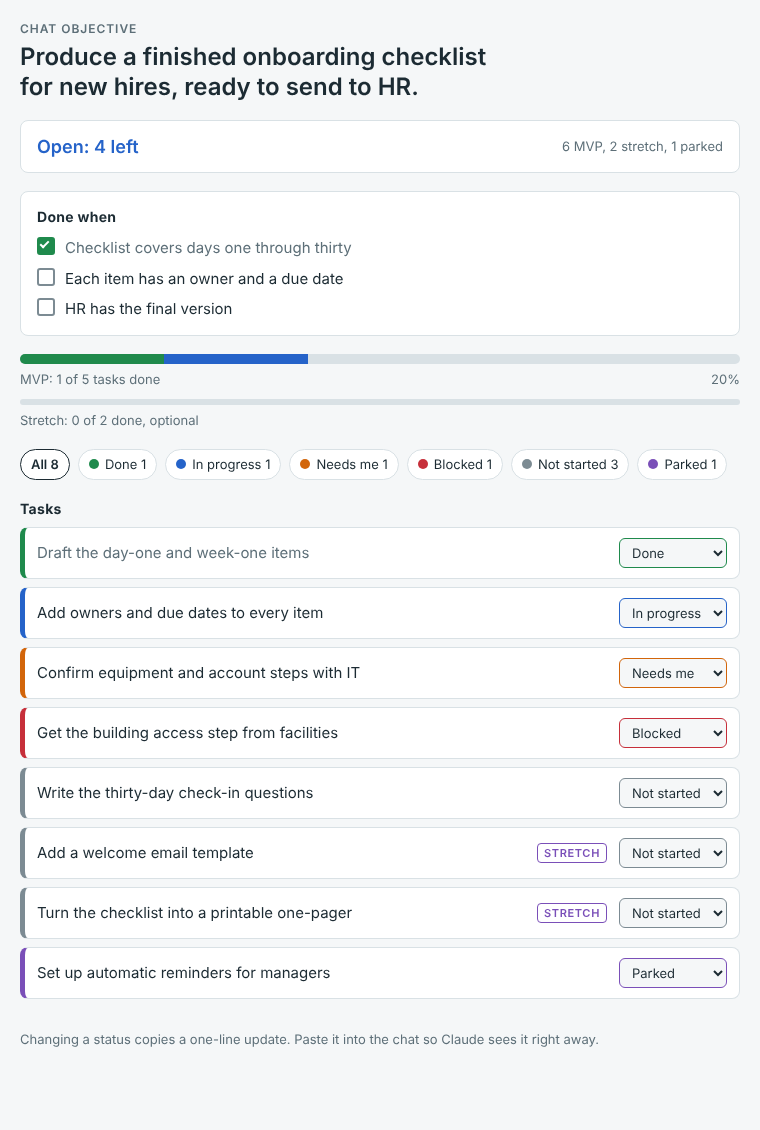
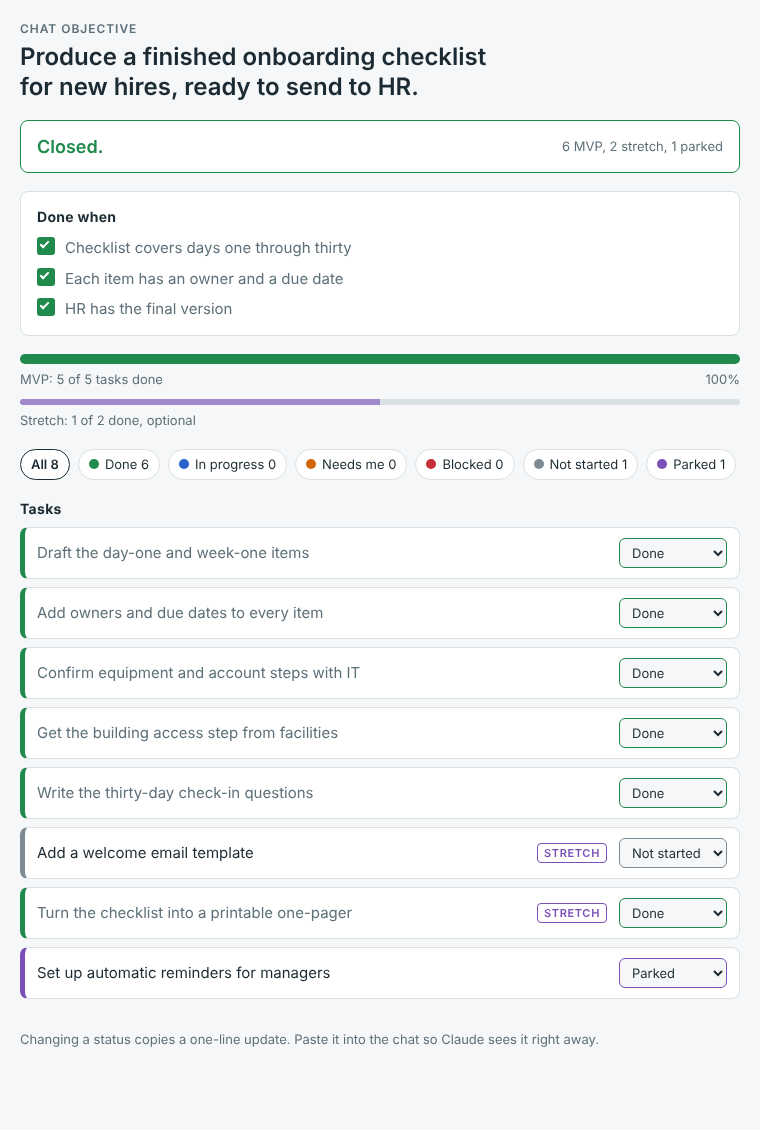
I set a standing preference so every chat starts the same way. Before any other work, Claude states one objective and builds a live tracker page, then updates it as the work moves. The page has:
- One objective and a short “done when” list at the top.
- A task list with color-coded statuses: green for done, blue for in progress, orange for needs me, red for blocked, gray for not started, and purple for parked.
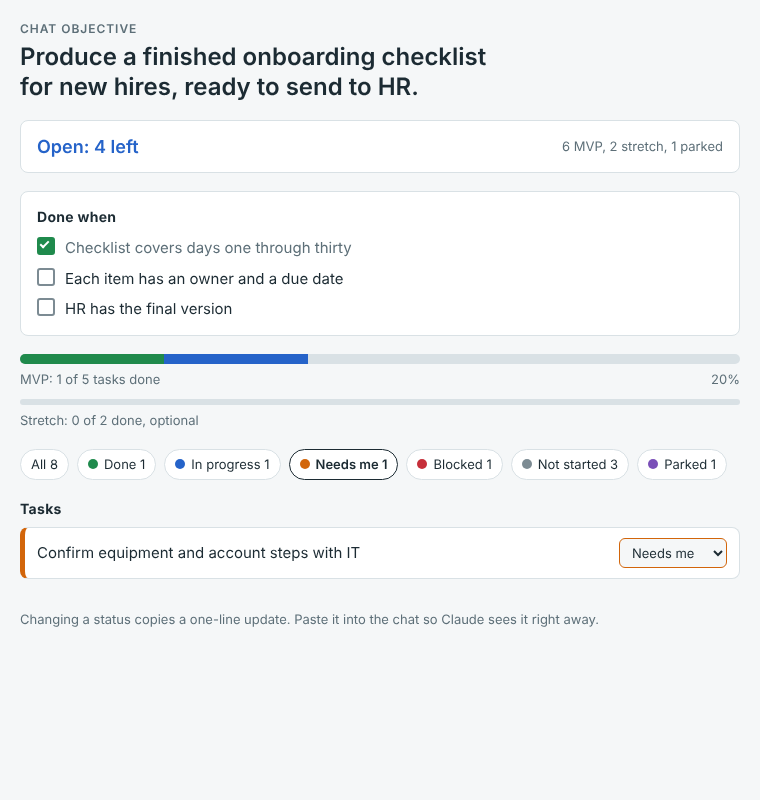
- A progress bar and filters by status, so I see the state at a glance instead of rereading paragraphs.
Orange is the one I watch. Filter for orange and you see only what is waiting on you.
MVP first, with a stretch
The progress bar measures the MVP: the tasks that must be finished for the objective to be met. Anything nice to have goes in as a stretch task. Stretch tasks sit below the bar, and they never hold the chat open.
The banner reads “Open: N left” until every MVP task is done or parked. Then it flips to a green “Closed.” That banner is what ends the chat.
“Parked” is for follow-ups I choose to defer on purpose. They stay tracked, but they don’t keep the objective open. That is how I stopped scope creep: a good new idea gets parked instead of quietly becoming another hour of work.
The start of the chat matters most.
A chat that opens with a clear objective and a definition of done finishes sooner than one that opens with a topic. “Help me with our onboarding checklist” is a topic. “Produce a finished onboarding checklist for new hires, done when it covers days one through thirty and is ready to send to HR” is an objective.
How to try this yourself
Paste this at the start of your next multi-step chat. It is plain text, so any assistant can follow it, whether or not it can build a page.
Start of every multi-step chat (skip all of this for quick questions)
- Before doing any work, check that the objective is clear. It is clear if you can say in one sentence what finished looks like. A topic (“help with onboarding”) is not an objective.
- If it isn’t clear, ask me one short question: what should be finished by the end of this chat, and how will I know it is done? Offer two to four likely objectives if you can. Wait for my answer.
- If it is clear, state the objective in one sentence and give a “done when” list of three to five items.
- Keep a tracker for the rest of the chat. If you can build a live page, make one. If you can’t, keep a plain-text task list at the end of every reply. Keep your other text short.
What the tracker shows
- The objective at the top, then the “done when” list with a check next to each item.
- A first line that reads “Open: N left” while any required (MVP) task is not done or parked. When every MVP task is done or parked, it reads “Closed.” That ends the chat.
- Required (MVP) tasks counted separately from stretch tasks (nice to have). Stretch tasks never keep the chat open.
- A status on every task: 🟩 done, 🟦 in progress, 🟧 needs me, 🟥 blocked, ⬜ not started, 🟪 parked.
- Parked means a follow-up I chose to defer on purpose. It stays listed but doesn’t keep the objective open. If I raise an idea outside the objective, offer to park it.
Keeping it honest
- At the start of every reply, look at the tracker again and trust it over your memory of the chat.
- When you finish a task, update its status yourself. When I tell you a status changed, update it.
- Before you call anything done, check it against the real thing, not a simplified test.
- When it reads “Closed.”, say the objective is done and stop. Don’t add new work.
- Never put client names, passwords, or other sensitive data in the tracker.
I run this as a skill in Claude, with a live page. The steps below for ChatGPT and Copilot come from OpenAI’s and Microsoft’s help pages. Menu names change, so look for the closest match.
Set it up once: always on, or on demand
Pasting the instructions every time works, but you can save them once. There are two ways. Always on means every new chat starts with an objective and a task list. On demand means the instructions are saved and only run when you ask, so quick questions stay quick.
- Claude, always on: Click your initials, open Settings, and find the instructions field (listed as personal preferences or “Your Claude”). Paste the instructions and save.
- Claude, on demand: Save the instructions as a skill. Turn on “Code execution and file creation” under Settings > Capabilities, then go to Customize > Skills, click +, choose Create skill, and upload your skill file. Claude uses a skill when it fits your request, or you can name it in your message. To limit the instructions to one job instead, put them in a project’s instructions.
- ChatGPT, always on: Click your profile picture and choose Customize ChatGPT (or Personalization). Turn on custom instructions, paste the instructions into the box about how you want responses, and keep it enabled for new chats.
- ChatGPT, on demand: Choose Projects in the left-hand menu, create a project, and add the instructions as its custom instructions. Start a chat in that project when you want the tracker.
- Microsoft 365 Copilot, always on: Open Copilot Chat, click the three-dot menu, open settings, and go to Personalization. Edit custom instructions, paste the instructions, and save.
- Microsoft 365 Copilot, on demand: Run the instructions as a prompt, hover over it, and click the bookmark icon (Save prompt). Next time, open the Copilot Prompt Lab, choose Your saved prompts, and click it to run. Saved prompts are visible only to you.
Then start a chat as usual. If the assistant doesn’t open with an objective and a task list, name your saved instructions once and ask it to start.
Time to close some cans
AI is most useful when it fits how your business really works and is set up with care around your data. If you’re an owner or office manager in eastern Pennsylvania and want to use AI practically and safely, Open Tier Systems can help. Get in touch, and we’ll talk through where it makes sense for your team and how to start.
About The Author